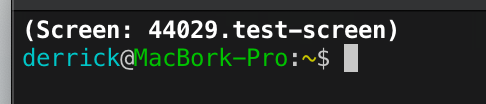
I often SSH into servers to get some work done, and one of the things I discovered recently is that I may not always know or remember if I’m in a screen session.
So I had the bright idea to just add it to my shell prompt!
Simply just add one of these to your RC file of choice:
Bash
# Add Screen name to PS1 if we're in a screen.if [ -n "$STY" ]; then
PS1="\[\e[1m\](Screen: $STY)\[\e[0m\]\n$PS1"
fiCode language:PHP(php)
ZSH
# Add Screen name to PROMPT if we're in a screen.if [[ -n "$STY" ]]; then
PROMPT="%B(Screen: $STY)%b"$'\n'"$PROMPT"
fiCode language:PHP(php)
And remember, if you’re asking yourself if you should run something in a screen, you’re already too late!
During a client onsite last year, I was first introduced to ngrok. Ngrok provides “secure introspectable tunnels to localhost.” The free tier of ngrok provides temporary, random subdomains to use. This is fine most of the time, but kind of causes problems for things like Jetpack that require persistent domain names for connecting.
While I could shell out the $5/month for the lowest paid tier of ngrok, I would still be limited to a certain number of domains and connections.
While looking for an alternative to ngrok, I came across sish. Sish is “an open source serveo/ngrok alternative. HTTP(S)/WS(S)/TCP Tunnels to localhost using only SSH.” To be honest, I don’t understand most of those words, but that won’t stop me!
I of course needed a server somewhere to run this on, so I ran over to DigitalOcean and decided to spend my $5/month on a general purpose VPS instead (Here’s my DigitalOcean referral link if you’re so inclined).
What follows is my notes I took to install sish and get it up and running. I can’t guarantee they’re perfect, and I don’t feel like deleting my VPS and starting over again just to make sure 🙂 If you see something wrong, feel free to comment me a correction or question.
Step 1: Make a wildcard subdomain (ex *.sish.example.com)
One of the tasks that I have to do often at work is copying data to and from an SFTP directory. Previously I had a constant domain and port that I was able to connect to, an I could save this in a WinSCP profile for ease of use. Due to some recent architectural changes though, we’re now dynamically generating IPs and ports to connect to, which caused a bit of a headache. Luckily though, we do get a really nice sftp://user@domain.example.com:1234 URI that gives us this information, and some terminal clients even allow you to click it (ConEmu).
Unfortunately, I can’t just register WinSCP as the default handler for sftp URIs because I needed to provide other data, such as a private key and proxy information.
To fix this, I created a wrapper, poorly named scp.cmd that does all of this work:
@echo off
:: Set some necessary path variables.
:: I would recommend WinSCP Portable, but that's just me.
set WINSCP_PATH="C:\Path To\winscp.exe"
set PRIVKEY_PPK="C:\Path To\Private Key.ppk"
:: Run the actual SCP command.
%WINSCP_PATH% %1 /privatekey=%PRIVKEY_PPK% /rawsettings ProxyMethod=2 ProxyHost="127.0.0.1" ProxyPort=8080
:: Unset the variables now that we don't need them.
set WINSCP_PATH=
set PRIVKEY_PPK=Code language:PHP(php)
From here I can create a Windows Registry file (or manually do it with regedit.exe but that’s crazy) to register the sftp URI handler and point it to my scp.cmd file:
Windows Registry Editor Version 5.00
[HKEY_CLASSES_ROOT\sftp\shell\open\command]
@="\"C:\\Windows\\scp.cmd\" \"%1\""Code language:JavaScript(javascript)
Now I can easily click on sftp links for work, I can paste them into the Windows Run dialog, or even open them via the command line with start. This is a wonderful time saver!