Blog

  • Sending Prowl Alerts via Bash

    Sending Prowl Alerts via Bash

    I’m working on some server scripting and I wanted to find a way to make sure I get proper alerts. I tried hard getting Twilio working cheaply, but that failed. So I remembered that I use Prowl for other things on my phone–so why not just send more alerts that way?

    So, again with the help of ChatGPT I have made a terrible monstrosity:

    #!/bin/bash
    
    # Exit if any command fails, if an unset variable is used, or if a command in a pipeline fails
    set -euo pipefail
    
    # Default values
    application="Shell Notification"
    priority=0
    event="Event"
    message=""
    logfile="/var/log/send-prowl-alert.log"
    url=""
    
    # Usage information
    usage() {
        echo "Usage: $0 --message=<message> [--application=<application>] [--event=<event>] [--description=<description>] [--priority=<priority>] [--url=<url>]"
        echo "Required:"
        echo "  --message=<message>       A description of the event, generally terse"
        echo "                            Maximum of 10000 bytes"
        echo "Optional:"
        echo "  --application=<application>  The name of the application (default: 'Shell Notification')"
        echo "                               Maximum of 256 bytes"
        echo "  --event=<event>              The name of the event or subject of the notification (default: 'Event')"
        echo "                               Maximum of 1024 bytes"
        echo "  --priority=<priority>        The priority of the alert (default: 0)"
        echo "                               An integer value ranging [-2, 2] representing:"
        echo "                                   -2 Very Low"
        echo "                                   -1 Moderate"
        echo "                                    0 Normal"
        echo "                                    1 High"
        echo "                                    2 Emergency"
        echo "                               Emergency priority messages may bypass quiet hours according to the user's settings."
        echo "  --url=<url>                  The URL which should be attached to the notification"
        echo "                               Maximum of 512 bytes"
        echo "  --help                       Displays this help message"
    }
    
    # URL Encodes a string
    urlencode() {
      local string="$1"
      local length="${#string}"
      local i
    
      for ((i = 0; i < length; i++)); do
        local c="${string:i:1}"
        case $c in
          [a-zA-Z0-9.~_-])
            printf '%s' "$c"
            ;;
          *)
            printf '%%%02X' "'$c"
            ;;
        esac
      done
    }
    
    # Check if the script is being run manually or via cron
    if [[ -t 1 ]]; then
        # Output to console if being run manually
        log_message() { echo "[$(date '+%Y-%m-%d %H:%M:%S')] $*"; }
    else
        # Output to log file if being run via cron
        log_message() {
            echo "[$(date '+%Y-%m-%d %H:%M:%S')] $*" >> "${logfile}"
            # Truncate the log file to 1 megabyte
            if [[ $(wc -c <"${logfile}") -gt 1000000 ]]; then
                tail -c 1000000 "${logfile}" > "${logfile}.tmp" && mv "${logfile}.tmp" "${logfile}"
            fi
        }
    fi
    
    # Parse arguments
    for arg in "$@"; do
        case "${arg}" in
            --message=*)
                message=${arg#*=}
                ;;
            --application=*)
                application=${arg#*=}
                ;;
            --event=*)
                event=${arg#*=}
                ;;
            --priority=*)
                priority=${arg#*=}
                ;;
            --url=*)
                url=${arg#*=}
                ;;
            --help)
                usage
                exit 0
                ;;
            *)
                echo "Error: Unsupported argument ${arg}"
                usage
                exit 1
                ;;
        esac
    done
    
    
    # Create a variable to store error messages
    errors=""
    
    # Check if curl is installed
    if ! command -v curl &> /dev/null; then
        errors+="Error: curl is not installed. Please install curl and try again.\n"
    fi
    
    # Check that a message was provided
    if [[ -z "${message}" ]]; then
        errors+="Error: No message provided."
    fi
    
    # Check if the URL is valid
    if [[ -n $url && ! $url =~ ^(https?://)[^\s/$.?#].[^\s]*$ ]]; then
        errors+="Error: Invalid URL.\n"
    fi
    
    # Check byte size of the parameters and append error if they exceed the max limit
    if [[ "${#url}" -gt 512 ]]; then
        errors+="Error: URL exceeds maximum byte limit (512 bytes).\n"
    fi
    
    if [[ "${#application}" -gt 256 ]]; then
        errors+="Error: Application name exceeds maximum byte limit (256 bytes).\n"
    fi
    
    if [[ "${#event}" -gt 1024 ]]; then
        errors+="Error: Event name exceeds maximum byte limit (1024 bytes).\n"
    fi
    
    if [[ "${#message}" -gt 10000 ]]; then
        errors+="Error: Message exceeds maximum length (10000 bytes).\n"
    fi
    
    if [[ ! "${priority}" =~ ^-?[0-2]$ ]]; then
        errors+="Error: Invalid priority. Must be an integer between -2 and 2.\n"
    fi
    
    # Check if the API key file exists and is not empty
    if [[ ! -s ~/.prowl_api_key ]]; then
        errors+="Error: The Prowl API key file does not exist or is empty. Please create a file at ~/.prowl_api_key and add your API key to it.\nExample:\n  echo 'your_api_key' > ~/.prowl_api_key\n  chmod 600 ~/.prowl_api_key\n"
    fi
    
    # Check the permissions on the API key file, if it exists
    # We have to do it in a convoluted cross platform way because macos does not support `stat -c`
    if [[ -f ~/.prowl_api_key ]]; then
        # Retrieve the file permissions and remove any trailing '@' symbol (indicating extended attributes)
        permissions=$(ls -l -d ~/.prowl_api_key | awk '{print $1}' | tr -d '@')
    
        # Check if the permissions are not set to '-rw-------'
        if [[ "$permissions" != "-rw-------" ]]; then
            # Add an error message to the 'errors' variable
            errors+="Error: The permissions on the API key file are not set correctly. Please run 'chmod 600 ~/.prowl_api_key' and try again.\n"
        fi
    fi
    
    # If any errors were detected, print the error messages and exit
    if [[ -n $errors ]]; then
        echo -e "${errors}"  # -e enables interpretation of backslash escapes like \n
        exit 1
    fi
    
    # Get the Prowl API key
    prowl_api_key=$(cat ~/.prowl_api_key)
    
    # Save the alert data for logging before we encode it
    alert_log_string="$application : $event : $priority : $url : $message"
    
    # URL-encode the variables
    prowl_api_key=$(urlencode "$prowl_api_key")
    application=$(urlencode "$application")
    event=$(urlencode "$event")
    message=$(urlencode "$message")
    priority=$(urlencode "$priority")
    url=$(urlencode "$url")
    
    # Send the alert
    response=$(curl -s "https://api.prowlapp.com/publicapi/add?apikey=${prowl_api_key}&application=${application}&event=${event}&description=${message}&priority=${priority}&url=${url}")
    
    # Check if the alert was sent successfully
    if [[ "${response}" != *"success code=\"200\""* ]]; then
        log_message "Error sending alert: ${alert_log_string}"
        log_message "Response: ${response}"
        exit 1
    fi
    
    log_message "Alert sent successfully: $alert_log_string"
    exit 0
    Code language: PHP (php)

    Good luck!

  • Stopping WordPress User Registration Spam

    Stopping WordPress User Registration Spam

    I’ve had a rash of user registration spam lately, and even though I’m sure the site is secure, it’s just very annoying. So I’ve whipped up a quick little hook that I’ve thrown in my mu-plugins to give me the ability to add email hostnames to a blocklist and disable user registration from them:

    /**
     * Hook into the user registration process to deny registration to a blocklist of hostnames.
     *
     * @param string   $sanitized_user_login The sanitized username.
     * @param string   $user_email The user's email address.
     * @param WP_Error $errors Contains any errors with the registration process.
     *
     * @return void
     */
    function emrikol_blocklist_email_registration( string $sanitized_user_login, string $user_email, WP_Error $errors ): void {
    	// Validate the email address.
    	if ( filter_var( $user_email, FILTER_VALIDATE_EMAIL ) ) {
    		// Extract the email hostname from the user's email address and normalize it.
    		$email_parts  = explode( '@', $user_email );
    		$email_hostname = strtolower( $email_parts[1] );
    
    		$blocklist = array(
    			'email.imailfree.cc',
    			'mail.imailfree.cc',
    			'mailbox.imailfree.cc',
    		);
    
    		// Check if the email hostname is in the blocklist.
    		if ( in_array( $email_hostname, $blocklist ) ) {
    			$errors->add( 'email_hostname_blocked', __( 'Sorry, registration using this email hostname is not allowed.', 'emrikol' ) );
    		}
    	}
    }
    add_action( 'register_post', 'emrikol_blocklist_email_registration', 10, 3 );
    Code language: PHP (php)

    There’s lots of different ways you could extend this for yourself, like adding a hostname regex, a filter, or an admin screen to allow updates to the blocklist without having to make a code deploy.

  • Supercharge Your Clipboard with a Shell Function for iTerm2

    Supercharge Your Clipboard with a Shell Function for iTerm2

    Well, I’ve been playing with ChatGPT more, and I had ChatGPT (GPT-4) write this blog post for me. I told it that I was going to give it some of my blog posts to determine my writing style, and to have it write me a blog post about this bash function. It’s …. meh … not really “my style” but whatever.

    The idea of this shell function is to integrate with iTerm2’s proprietary escape sequences to allow you to pipe content right to your clipboard. I’m using the name pbcopy from MacOS so that I don’t need to think about it, and can use pbcopy anywhere. Now I can work on a remote server and cat stupid-stuff.log | pbcopy and get a copy of it locally to mess with, without having to click and drag or download the file. Super lazy ❇

    Enjoy the AI blog post:


    Hey folks, today we’re going to explore a neat shell function that can make your life a lot easier when you’re working in iTerm2 on macOS. The purpose of this function is to make the built-in pbcopy command work seamlessly in iTerm2, even when the command isn’t available in your shell environment.

    Without further ado, let’s dive into the code:

    # pbcopy via iTerm2
    function pbcopy() {
    	if which pbcopy >/dev/null 2>&1; then
    		pbcopy "$@"
    	else
    		# Replace ^[ with the ASCII escape character
    		local start="\e]1337;CopyToClipboard\a"
    		local end="\e]1337;EndCopy\a"
    		printf "${start}$(cat)${end}"
    	fi
    }
    Code language: PHP (php)

    You might be wondering how this magic works. Let’s break it down step by step:

    1. The function first checks if the pbcopy command is available in your shell environment using the which command. If it is, it simply calls the built-in pbcopy command with the provided arguments.
    2. If the pbcopy command isn’t available, the function creates two local variables, start and end, containing special escape sequences that iTerm2 understands.
    3. The printf command is then used to concatenate the start escape sequence, the contents of the input (read using cat), and the end escape sequence. This formatted string is what gets sent to iTerm2.

    When iTerm2 receives this specially formatted string, it recognizes the escape sequences and takes care of copying the text between them to the system clipboard.

    And that’s it! With this function in your shell environment, you can copy text to your clipboard using pbcopy without any hassle, whether the command is natively available or not. To use this function, simply add it to your shell startup file (like .bashrc or .zshrc), and you’re good to go.

    In a practical scenario, let’s say you’re working on a project and you want to share the contents of a log file with a colleague. Instead of manually opening the log file, selecting its content, and copying it to your clipboard, you can use this shell script to streamline the process. With the pbcopy function added to your shell startup file, simply open your terminal and run the command cat logfile.txt | pbcopy. This command will read the content of the logfile.txt file and pipe it directly to the pbcopy function, which in turn places the content into your clipboard. Now you can easily paste the log file content into an email, chat application, or any other medium you choose, all without leaving the comfort of your terminal. This not only saves time but also enhances your overall productivity when working with text-based data in a command-line environment.

    In conclusion, this shell function is a fantastic little tool to enhance your iTerm2 experience on macOS. I hope you find it as useful as I do. As always, if you have any questions or comments, feel free to drop them below. Happy coding!


    Happy coding, indeed 🤖

  • More Garbage Sysadmin: Reboot Linux Server on Kernel Panic

    More Garbage Sysadmin: Reboot Linux Server on Kernel Panic

    Just like restarting a server when the memory is low, I’ve had a recent problem with kernel panics on my Raspberry Pi, and I’ve found a terrible solution to fix it: Just reboot.

    Setting the /proc/sys/kernel/panic file contents to a non-zero integer will reboot the server on kernel panic after that many seconds.

    Because I’m lazy, I asked ChatGPT to write me up a startup script to do this for me, and here’s what I have now:

    To set the panic timeout value on Ubuntu Server 20.04 and later versions, you can create a systemd service unit file.

    Here are the steps to create a systemd service unit file:

    1. Open a terminal window on your Ubuntu Server.
    2. Create a new service unit file with the following command:

      sudo nano /etc/systemd/system/panic-timeout.service

      This will open a new file named panic-timeout.service in the nano text editor with superuser privileges.
    3. Add the following lines to the file:
    [Unit]
    Description=Panic Timeout
    
    [Service]
    Type=oneshot
    ExecStart=/bin/bash -c "echo 60 > /proc/sys/kernel/panic"
    
    [Install]
    WantedBy=multi-user.target
    Code language: JavaScript (javascript)

    This service unit file sets the panic timeout to 60 seconds.

    1. Save the file by pressing Ctrl+O, then exit nano by pressing Ctrl+X.
    2. Reload the systemd daemon to recognize the new service unit file with the following command:

      sudo systemctl daemon-reload
    3. Enable the service unit file to run at boot time with the following command:

      sudo systemctl enable panic-timeout.service
    4. Reboot the server to test the service unit file. After the server reboots, the panic-timeout.service will automatically run the echo command and set the panic timeout to 60 seconds.

    That’s it! With these steps, you can set the panic timeout value on the latest versions of Ubuntu Server.

    Well there you have it! Don’t forget to follow along for more terrible ideas!

  • Gathering database performance with WP-CLI

    Gathering database performance with WP-CLI

    Recently at work, my team was asked to help gather data about database server performance before and after an upgrade. To help with this, we collected a number of heavy database pages on some WordPress sites, dumped every query running to generate the page, and grabbed them to profile.

    I whipped up this quick and dirty WP-CLI command that will run a list of SQL queries 1,000 times and give you the minimum time, maximum time, average time, and standard deviation for each query.

    With this data, you can re-run the same queries again after a server change to determine if there has been any major SQL performance differences:

    /**
     * Profiles DB performance by running SQL queries and returning timing statistics.
     */
    public function db_profile( $args, $assoc_args ) {
    	$format = WP_CLI\Utils\get_flag_value( $assoc_args, 'format', 'table' );
    
    // Put all of your queries here!
    $site_sql_lines = <<<END
    SHOW TABLES LIKE 'wp_posts';
    END;
    
    	$lines = explode( PHP_EOL, $site_sql_lines );
    
    	global $wpdb;
    
    	$stats         = array();
    	$total_time_us = 0;
    	$runs          = 100;
    	$progress      = \WP_CLI\Utils\make_progress_bar( sprintf( 'Running %s Queries', number_format( count( $lines ) * $runs ) ), count( $lines ) * $runs );
    
    	for ( $run = 1; $run <= $runs; $run++ ) {
    		foreach ( $lines as $index => $line ) {
    			if ( ! isset( $stats[ $index ] ) || ! is_array( $stats[ $index ] ) ) {
    				$stats[ $index ] = array(
    					'query' => $line,
    					'runs'  => array(),
    				);
    			}
    
    			$start_time = hrtime( true );
    			$results    = count( $wpdb->get_results( $line, ARRAY_N ) ); // phpcs:ignore WordPress.DB.DirectDatabaseQuery, WordPress.DB.PreparedSQL.NotPrepared
    			$end_time   = hrtime( true );
    			$time_us    = ( $end_time - $start_time ) / 1000;
    
    			$total_time_us += $time_us;
    
    			$stats[ $index ]['runs'][ $run ] = $time_us;
    			$progress->tick();
    		}
    	}
    
    	$data = array();
    
    	foreach ( $stats as $index => $stat ) {
    		$stats[ $index ]['stats'] = array(
    			'min' => min( $stats[ $index ]['runs'] ),
    			'max' => max( $stats[ $index ]['runs'] ),
    			'avg' => array_sum( $stats[ $index ]['runs'] ) / count( $stats[ $index ]['runs'] ),
    		);
    
    		$data[ $index ] = array(
    			'Query'  => $stat['query'],
    			'Min'    => number_format( (float) $stats[ $index ]['stats']['min'] / 1000, 3 ),
    			'Max'    => number_format( (float) $stats[ $index ]['stats']['max'] / 1000, 3 ),
    			'Avg'    => number_format( (float) $stats[ $index ]['stats']['avg'] / 1000, 3 ),
    			'StdDev' => number_format( (float) $this->stats_standard_deviation( $stats[ $index ]['runs'] ) / 1000, 3 ),
    		);
    
    		if ( 'csv' === $format ) {
    			$data[ $index ]['Runs'] = wp_json_encode( $stats[ $index ]['runs'] );
    		}
    	}
    
    	$progress->finish();
    
    	// Output data.
    	WP_CLI\Utils\format_items( $format, $data, array_keys( $data[0] ) );
    
    	// Output totals if we're not piping somewhere.
    	if ( ! WP_CLI\Utils\isPiped() ) {
    		WP_CLI::success(
    			sprintf(
    				'Total queries ran: %s, DB Time Taken: %s',
    				WP_CLI::colorize( '%g' . number_format( count( $lines ) * $runs, 0 ) . '%n' ),
    				WP_CLI::colorize( '%g' . $this->convert_to_human_readable( $total_time_us ) . '%n' ),
    			)
    		);
    	}
    }
    
    Code language: PHP (php)

    You can then run it and gather the data as a table, or as a CSV file (--format=csv) which is much more likely to be useful.

  • Get First Date of Week in Google Sheets, When the Week of the Year is Related to the Row Number

    Get First Date of Week in Google Sheets, When the Week of the Year is Related to the Row Number

    *phew* what a title

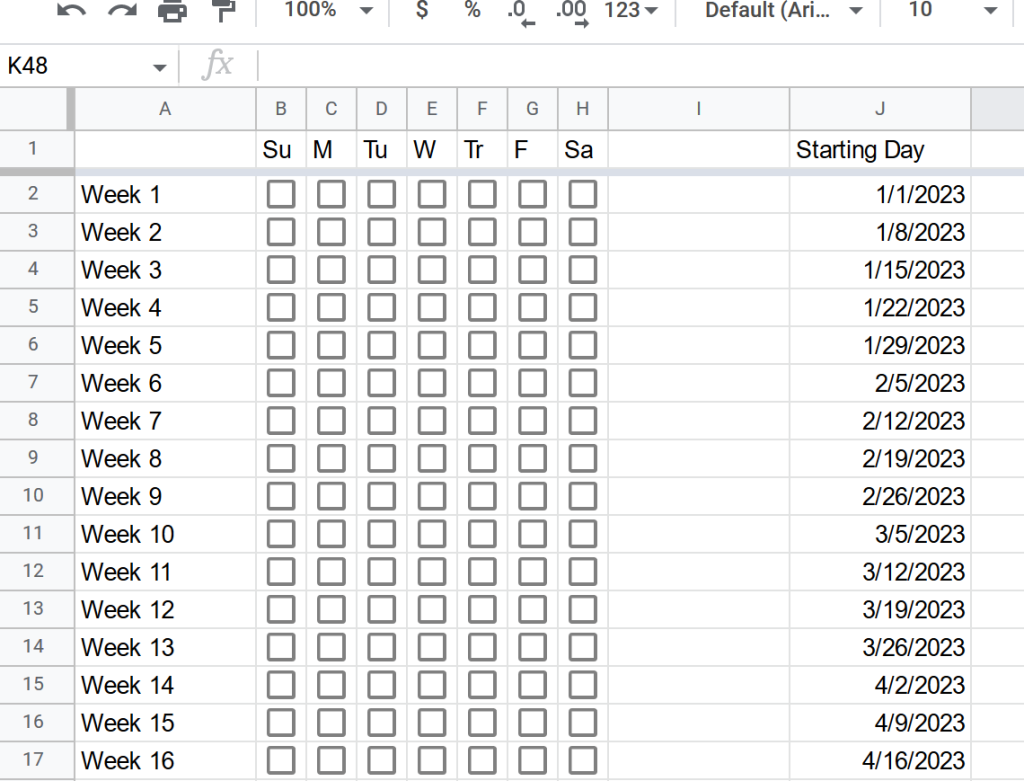
    For a recent project, I wanted to set up a Google Sheet that tracked something daily/weekly. I wanted one column to show the starting day of the week to help keep me on track, and I ended up with this:

    I used ChatGPT to help me make the formula to determine the first day of the week, indexed to the current row:

    =DATE(YEAR(TODAY()), MONTH(DATE(YEAR(TODAY()),1,1)+(ROW()-2)*7-WEEKDAY(DATE(YEAR(TODAY()),1,1))+1), DAY(DATE(YEAR(TODAY()),1,1)+(ROW()-2)*7-WEEKDAY(DATE(YEAR(TODAY()),1,1))+1))

    This is how ChatGPT explains how the function works:

    This Google Sheets function returns the date that corresponds to the first day of the week for a given row number. The row number is specified by the ROW() function, which returns the row number of the current cell.

    The function uses the following steps to calculate the date:

    1. It uses the YEAR(TODAY()) function to get the current year.
    2. It uses the DATE(YEAR(TODAY()),1,1) function to get the first day of the current year (e.g. January 1).
    3. It uses the WEEKDAY(DATE(YEAR(TODAY()),1,1)) function to get the day of the week of the first day of the year as a number (e.g. 1 for Monday, 2 for Tuesday, etc.).
    4. It uses the (ROW()-2)*7 expression to calculate the number of days to skip from the first day of the year to get to the desired week. For example, if the ROW() function returns 2, then the expression will evaluate to 0, which means that no days need to be skipped. If the ROW() function returns 3, then the expression will evaluate to 7, which means that one week needs to be skipped.
    5. It uses the DATE(YEAR(TODAY()),1,1)+(ROW()-2)*7-WEEKDAY(DATE(YEAR(TODAY()),1,1))+1 expression to calculate the date that corresponds to the first day of the week for the given row number.
    6. It uses the MONTH(DATE(YEAR(TODAY()),1,1)+(ROW()-2)*7-WEEKDAY(DATE(YEAR(TODAY()),1,1))+1) function to get the month of the calculated date.
    7. It uses the DAY(DATE(YEAR(TODAY()),1,1)+(ROW()-2)*7-WEEKDAY(DATE(YEAR(TODAY()),1,1))+1) function to get the day of the month of the calculated date.
    8. It uses the DATE() function to combine the year, month, and day into a single date.

    For example, if the ROW() function returns 2 and the current year is 2022, the function will return the date January 3, 2022. If the ROW() function returns 3 and the current year is 2022, the function will return the date January 10, 2022.

    It took a lot of trial and error, and manual adjustments to get the function to work, and it was really fun to play with ChatGPT and work together to get this working. While I could have trial and errored myself to the end functionality eventually, this did end up saving me quite a bit of time.

    If you, random Internet stranger, want to use this function yourself, but your rows aren’t lined up the same as mine, you’ll just need to adjust the (ROW()-2) type areas to change the row offset you’re currently starting at.

  • Command Timing in ZSH

    Command Timing in ZSH

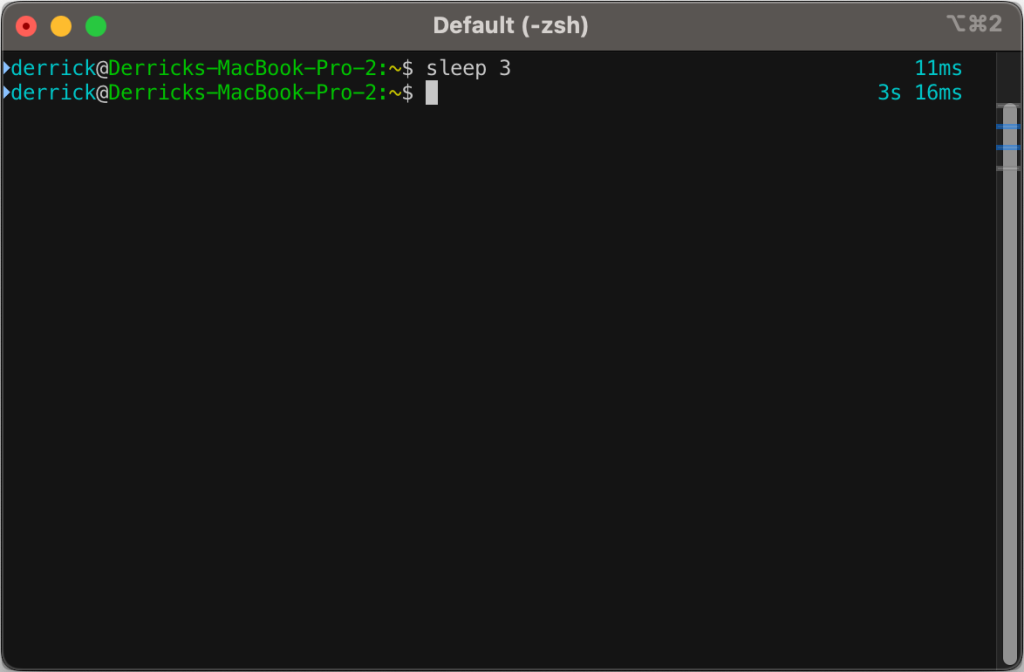
    I’ve had a few snippets in my .zshrc file for a while now that will output how long a command takes to process.

    First off, I’d like to say that I did not come up with this idea, and I didn’t really write the code. I’ve snipped it from somewhere and modified it over time, so I am very sorry to the original author for not being able to give full credit. I didn’t save where I got it from–so if anyone comes across this in the future and might know where the idea came from, drop it in the comments.

    Now, on to the fun:

    The original script only went down to the second, but I wanted more granularity than that, so I went down to the millisecond.

    You’ll likely need to install gdate (brew install gdate) for this to work properly.

    The code (added to ~/.zshrc):

    function preexec() {
    	timer=$(($(gdate +%s%0N)/1000000))
    }
    
    function precmd() {
    	if [ "$timer" ]; then
    		now=$(($(gdate +%s%0N)/1000000))
    		elapsed=$now-$timer
    
    		reset_color=$'\e[00m'
    		RPROMPT="%F{cyan} $(converts "$elapsed") %{$reset_color%}"
    		export RPROMPT
    		unset timer
    	fi
    }
    
    converts() {
    	local t=$1
    
    	local d=$((t/1000/60/60/24))
    	local h=$((t/1000/60/60%24))
    	local m=$((t/100/60%60))
    	local s=$((t/1000%60))
    	local ms=$((t%1000))
    
    	if [[ $d -gt 0 ]]; then
    			echo -n " ${d}d"
    	fi
    	if [[ $h -gt 0 ]]; then
    			echo -n " ${h}h"
    	fi
    	if [[ $m -gt 0 ]]; then
    			echo -n " ${m}m"
    	fi
    	if [[ $s -gt 0 ]]; then
    		echo -n " ${s}s"
    	fi
    	if [[ $ms -gt 0 ]]; then
    		echo -n " ${ms}ms"
    	fi
    	echo
    }Code language: PHP (php)
  • Limiting Featured Image Dimensions in WordPress

    Limiting Featured Image Dimensions in WordPress

    As a follow up to my last post about limiting file sizes during uploads, I had to come back to the problem with limiting image sizes for featured images. Not bytes this time, but pixel dimensions.

    Still being a bit of a block editor newb, this was an interesting challenge for me, and I was really surprised at how easy it was to implement. I basically googled around and found a few different things to put together that worked for me. The primary source was a post by Igor Benic on how to disable the publish button:

    After that, I discovered how to add notifications to the block editor, to tell when the image was too large, thanks to a post by David F. Carr:

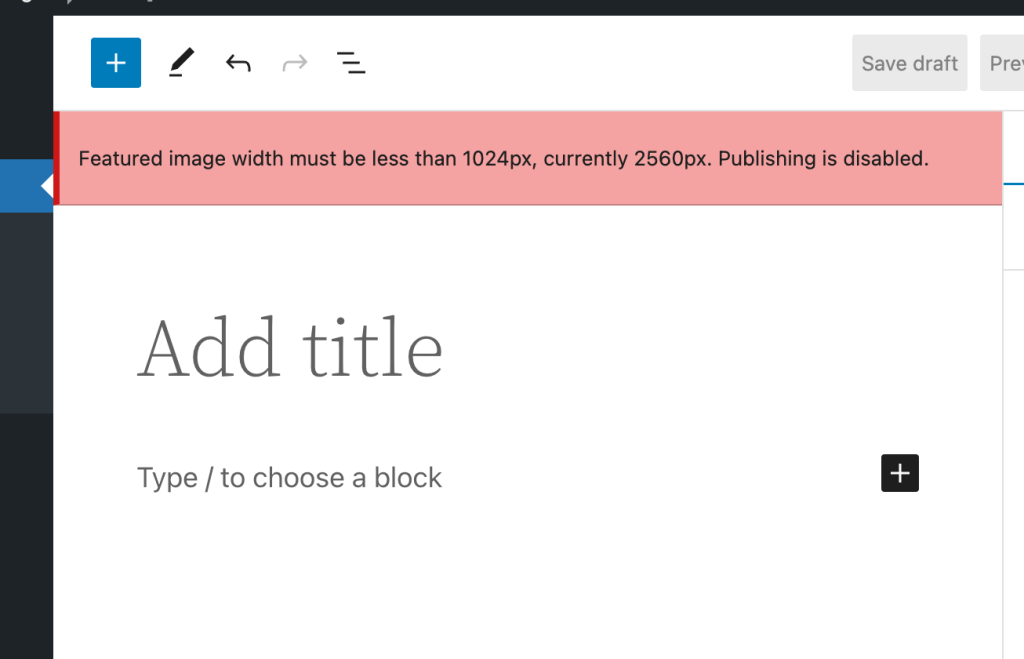
    So what’s it look like? Well, it’s pretty simple. If you choose a featured image that’s too large for the settings, it will add a non-dismissible error notification to the editor:

    Then it will block you from hitting the publish button:

    So, finally the code. This is just enqueued in as a simple add_action() during the enqueue_block_editor_assets hook. I’m absolutely not a good JS developer, so please don’t judge me too harshly. Also, that means this could be riddled with bugs. Use at your own risk 😀

    var postLocked = false;
    wp.domReady( () => {
    	wp.data.subscribe( function() {
    		var imageId = wp.data.select( 'core/editor' ).getEditedPostAttribute( 'featured_media' ); // Featured Image ID.
    
    		// If we have no image ID, and we already locked the post, we won't do anything.
    		if ( imageId ) {
    			blockEditorSettings = wp.data.select('core/block-editor').getSettings();
    
    			// Default to 1200px wide.
    			maxImageSize = 1200;
    			imageAttrs = wp.data.select('core').getMedia( imageId );
    
    			// Get the size for the "large image" and if it's available, use that instead.
    			if ( typeof blockEditorSettings !== 'undefined' && blockEditorSettings.hasOwnProperty( 'imageDimensions' ) ) {
    				maxImageSize = blockEditorSettings.imageDimensions.large.width;
    			}
    
    			if ( typeof imageAttrs !== 'undefined' && imageAttrs.hasOwnProperty( 'media_details') ) {
    				// Publish is not locked and width is too large.
    				if ( ! postLocked && imageAttrs.media_details.width > maxImageSize ) {
    					postLocked = true;
    					wp.data.dispatch( 'core/editor' ).lockPostSaving( 'featuredImageTooLarge' );
    
    					wp.data.dispatch('core/notices').createNotice(
    						'error', // Can be one of: success, info, warning, error.
    						wp.i18n.__( wp.i18n.sprintf( 'Featured image width must be less than %spx, currently %spx. Publishing is disabled.', maxImageSize, imageAttrs.media_details.width ) ),
    						{
    							id: 'featuredImageTooLarge', // Assigning an ID prevents the notice from being added repeatedly.
    							isDismissible: false, // Whether the user can dismiss the notice.
    						}
    					);
    				}
    
    			}
    		} else if ( postLocked ) {
    			postLocked = false;
    			wp.data.dispatch( 'core/editor' ).unlockPostSaving( 'featuredImageTooLarge' );
    			wp.data.dispatch('core/notices').removeNotice( 'featuredImageTooLarge' );
    		}
    	} );
    } );Code language: JavaScript (javascript)
  • Half Baked Idea: Limiting WordPress Image Upload Sizes

    Half Baked Idea: Limiting WordPress Image Upload Sizes

    If you want to be able to limit images (or any attachments) from being uploaded into the media library if they are too large, you can use the wp_handle_upload_prefilter filter to do this.

    Below is a really basic example I whipped up in a few minutes that I shared with a customer not too long ago:

    /**
     * Limits the maximum size of images that can be uploaded.
     *
     * @param array $file {
     *     Reference to a single element from `$_FILES`.
     *
     *     @type string $name     The original name of the file on the client machine.
     *     @type string $type     The mime type of the file, if the browser provided this information.
     *     @type string $tmp_name The temporary filename of the file in which the uploaded file was stored on the server.
     *     @type int    $size     The size, in bytes, of the uploaded file.
     *     @type int    $error    The error code associated with this file upload.
     * }
     *
     * @return array       Filtered file array, with a possible error if the file is too large.
     */
    function blarg_limit_max_image_upload_size( $file ) {
        if ( str_starts_with( $file['type'], 'image/' ) ) {
            $max_size = 1 * 1024; // 1kb.
    
            if ( $file['size'] > $max_size ) {
                // translators: %s: Human readable maximum image file size.
                $file['error'] .= sprintf( __( 'Uploaded images must be smaller than %s.' ), size_format( $max_size ) );
            }
        }
    
        return $file;
    
    }
    add_filter( 'wp_handle_upload_prefilter', 'blarg_limit_max_image_upload_size', 10, 1 );Code language: PHP (php)

    Good luck if you use any of my hot garbage in production 😀