If you’re hosting your WordPress website on DreamHost, and use their cron system to offload your WordPress faux-cron for better reliability, be careful of what version of PHP you have in your code.
I recently had an issue where my cron events weren’t firing, and after enabling email output, I ended up with something like this PHP error message:
Parse error: syntax error, unexpected '?' in /path/to/file.php on line 123
It turns out that WP-CLI was running PHP 5.x via the DreamHost cron system. I had PHP 7.x specific code in my theme. To fix this, I had to set the WP_CLI_PHP environment variable in my cron job:
export WP_CLI_PHP=/usr/local/php72/bin/php
wp cron event run --due-now --path=/home/path/to/wp/ --url=https://example.com/Code language:JavaScript(javascript)
WordPress has a built-in function called wp_safe_redirect(). This allows you to create redirects in code, but only to whitelisted domains (via the allowed_redirect_hosts filter).
The downside to this is that you have to remember to whitelist the domains. It’s easy to forget if you’re doing a lot of redirects, for instance with the WPCOM Legacy Redirector plugin.
When this happens, all un-whitelisted redirects will be redirected by default to /wp-admin/ instead, and can cause a headache trying to figure out what’s going wrong.
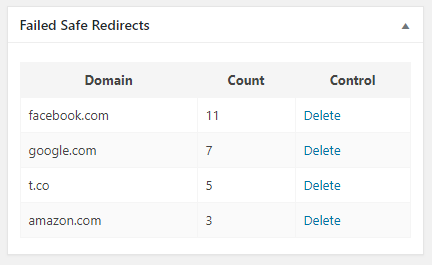
I had an idea to solve this problem. A simple logging plugin that logs failed redirects and adds a dashboard widget to show the domains and number of times the redirect has failed:
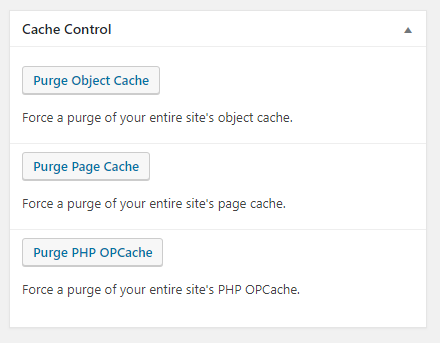
So if I am doing some development and want to purge one or more caches, I need to go dig around three different places to purge these, and that’s not fun. To help combat this, I made myself a simple Admin Dashboard widget with quick access to purge each of these:
One of the most important things to do when working on new themes, plugins, or debugging issues in WordPress is to turn on WP_DEBUG. According to the Codex:
WP_DEBUG is a PHP constant (a permanent global variable) that can be used to trigger the “debug” mode throughout WordPress. It is assumed to be false by default and is usually set to true in the wp-config.php file on development copies of WordPress.
It’s common to edit the wp-config.php file every time you want to turn this off and on, but another way to do it is via a secret cookie:
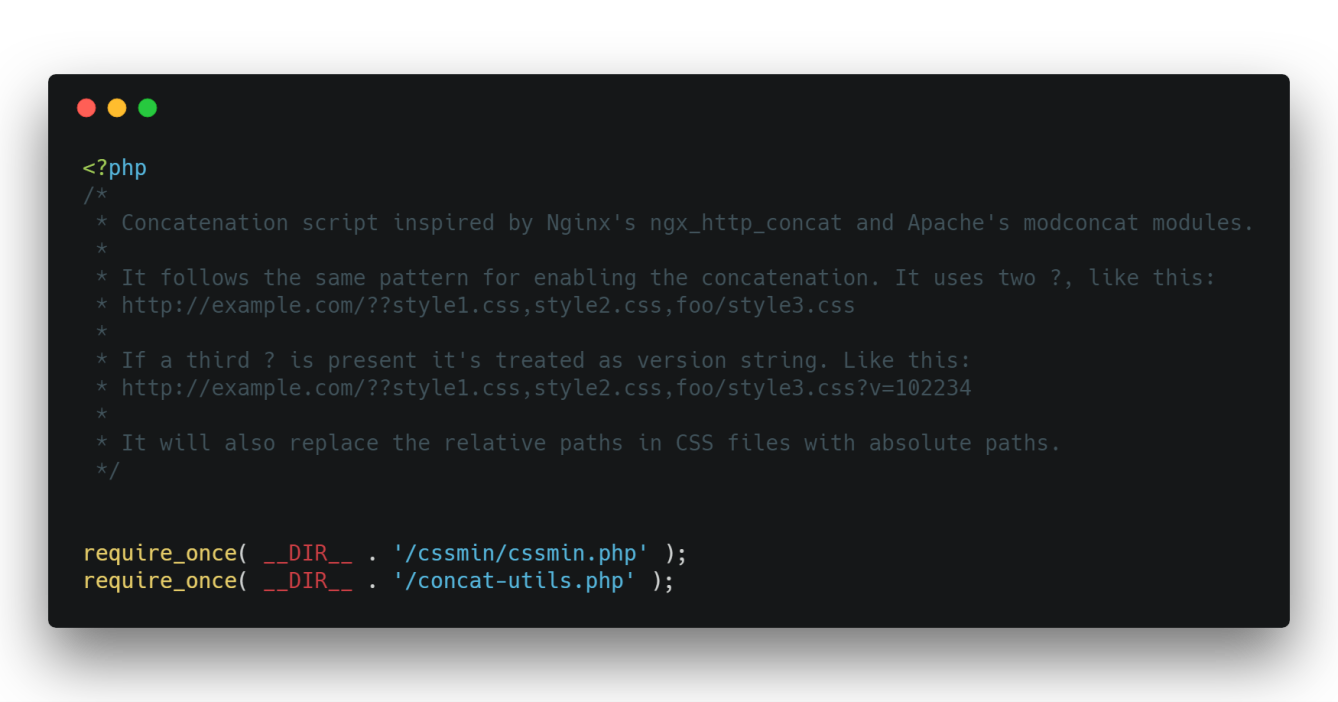
At WordPress.com VIP one of the features we have on our platform is automated concatenation of Javascript and CSS files when registered through the core WordPress wp_enqueue__*() functions.
This plugin was written to work with nginx, but the server running derrick.blog is Apache. I’ve worked around this and have nginx-http-concat running fully in WordPress, with added caching.
The bulk of the plugin is this file, which does all of the work of caching and calling the nignx-http-concat plugin:
The problem came up recently about how to make sure plugins activated in the WordPress plugin UI don’t get deactivated if they are necessary for a site to function. I thought that was an interesting thought puzzle worth spending 15 minutes on, so I came up with this function as a solution:
I made a small site recently where I wanted all newly registered users from a specific email domain to automatically be administrators (this is a terrible idea, don’t do it). The user registration was restricted by Single-Sign-On and 2-Factor Authentication, so I felt relatively safe doing this, especially since it was only a “for fun” project.
The interesting bit of code that upgraded users to admins is as follows:
Last week an interesting issue came up for a client. Somehow a few posts were moved from Published to Draft. Unfortunately, post status isn’t stored in revisions so it’s unlikely we’ll ever know who or how it happened. Luckily there’s a simple solution I found to log all post status transitions in post meta:
I recently worked on migrating a site to a different server and for one reason or another, some of the images did not come over properly. While I could have just re-downloaded and re-imported all of the media, it would have taken quite a while since the media library was well over 100Gb. Instead, I opted to use WP-CLI to help find what images were missing: