Tag: bash

  • Bash Script: Calculate before/after averages

    Bash Script: Calculate before/after averages

    I’ve been doing some performance testing, and wanted a quick way to test how well or poorly changes affect a site. Normally I’d whip out the ol’ calculator app and do this manually. That got tiring after a while, so instead with the help of ChatGPT, I made this little bash script that will do the work for you:

    #!/bin/bash
    
    # Function to calculate the average of a list of numbers
    average() {
    	local sum=0
    	local count=0
    
    	for num in "$@"; do
    		sum=$(echo "$sum + $num" | bc -l)
    		count=$((count+1))
    	done
    
    	echo "$sum / $count" | bc -l
    }
    
    # Parse arguments
    for i in "$@"; do
    	case $i in
    		--before=*)
    		BEFORE="${i#*=}"
    		shift
    		;;
    		--after=*)
    		AFTER="${i#*=}"
    		shift
    		;;
    		*)
    		# unknown option
    		;;
    	esac
    done
    
    # Check if both BEFORE and AFTER parameters are provided
    if [ -z "$BEFORE" ] || [ -z "$AFTER" ]; then
    	echo "Error: Missing required parameters."
    	echo "Usage: $0 --before=<comma-separated-values> --after=<comma-separated-values>"
    	exit 1
    fi
    
    IFS=',' read -ra BEFORE_LIST <<< "$BEFORE"
    IFS=',' read -ra AFTER_LIST <<< "$AFTER"
    
    # Calculate average for before and after lists
    BEFORE_AVG=$(printf "%.2f\n" $(average "${BEFORE_LIST[@]}"))
    AFTER_AVG=$(printf "%.2f\n" $(average "${AFTER_LIST[@]}"))
    
    echo "Before average: $BEFORE_AVG"
    echo "After average: $AFTER_AVG"
    
    # Calculate average percent increase, decrease or no change for the list
    if [ "$BEFORE_AVG" != "0.00" ]; then
    	PERCENT_CHANGE=$(echo "(($AFTER_AVG - $BEFORE_AVG) / $BEFORE_AVG) * 100" | bc -l)
    	if [ "$(echo "$PERCENT_CHANGE > 0" | bc -l)" -eq 1 ]; then
    		printf "Average percent increased: %.2f%%\n" "$PERCENT_CHANGE"
    	elif [ "$(echo "$PERCENT_CHANGE < 0" | bc -l)" -eq 1 ]; then
    		printf "Average percent decreased: %.2f%%\n" "$PERCENT_CHANGE" | tr -d '-'
    	else
    		echo "No change in average."
    	fi
    else
    	echo "Percent change from before to after: undefined (division by zero)"
    fi
    Code language: Bash (bash)

    It runs like this:

    $ average.sh --before=13.07,9.75,16.14,7.71,10.32 --after=1.22,1.28,1.13,1.19,1.26
    Before average: 11.40
    After average: 1.22
    Average percent decreased: 89.30%
    

    In this instance, it was calculating seconds–but you need to remember that it only goes to two decimal places, so if you need something finer you’ll need to adjust the code or your inputs.

    Happy Slacking!

  • Sending Prowl Alerts via Bash

    Sending Prowl Alerts via Bash

    I’m working on some server scripting and I wanted to find a way to make sure I get proper alerts. I tried hard getting Twilio working cheaply, but that failed. So I remembered that I use Prowl for other things on my phone–so why not just send more alerts that way?

    So, again with the help of ChatGPT I have made a terrible monstrosity:

    #!/bin/bash
    
    # Exit if any command fails, if an unset variable is used, or if a command in a pipeline fails
    set -euo pipefail
    
    # Default values
    application="Shell Notification"
    priority=0
    event="Event"
    message=""
    logfile="/var/log/send-prowl-alert.log"
    url=""
    
    # Usage information
    usage() {
        echo "Usage: $0 --message=<message> [--application=<application>] [--event=<event>] [--description=<description>] [--priority=<priority>] [--url=<url>]"
        echo "Required:"
        echo "  --message=<message>       A description of the event, generally terse"
        echo "                            Maximum of 10000 bytes"
        echo "Optional:"
        echo "  --application=<application>  The name of the application (default: 'Shell Notification')"
        echo "                               Maximum of 256 bytes"
        echo "  --event=<event>              The name of the event or subject of the notification (default: 'Event')"
        echo "                               Maximum of 1024 bytes"
        echo "  --priority=<priority>        The priority of the alert (default: 0)"
        echo "                               An integer value ranging [-2, 2] representing:"
        echo "                                   -2 Very Low"
        echo "                                   -1 Moderate"
        echo "                                    0 Normal"
        echo "                                    1 High"
        echo "                                    2 Emergency"
        echo "                               Emergency priority messages may bypass quiet hours according to the user's settings."
        echo "  --url=<url>                  The URL which should be attached to the notification"
        echo "                               Maximum of 512 bytes"
        echo "  --help                       Displays this help message"
    }
    
    # URL Encodes a string
    urlencode() {
      local string="$1"
      local length="${#string}"
      local i
    
      for ((i = 0; i < length; i++)); do
        local c="${string:i:1}"
        case $c in
          [a-zA-Z0-9.~_-])
            printf '%s' "$c"
            ;;
          *)
            printf '%%%02X' "'$c"
            ;;
        esac
      done
    }
    
    # Check if the script is being run manually or via cron
    if [[ -t 1 ]]; then
        # Output to console if being run manually
        log_message() { echo "[$(date '+%Y-%m-%d %H:%M:%S')] $*"; }
    else
        # Output to log file if being run via cron
        log_message() {
            echo "[$(date '+%Y-%m-%d %H:%M:%S')] $*" >> "${logfile}"
            # Truncate the log file to 1 megabyte
            if [[ $(wc -c <"${logfile}") -gt 1000000 ]]; then
                tail -c 1000000 "${logfile}" > "${logfile}.tmp" && mv "${logfile}.tmp" "${logfile}"
            fi
        }
    fi
    
    # Parse arguments
    for arg in "$@"; do
        case "${arg}" in
            --message=*)
                message=${arg#*=}
                ;;
            --application=*)
                application=${arg#*=}
                ;;
            --event=*)
                event=${arg#*=}
                ;;
            --priority=*)
                priority=${arg#*=}
                ;;
            --url=*)
                url=${arg#*=}
                ;;
            --help)
                usage
                exit 0
                ;;
            *)
                echo "Error: Unsupported argument ${arg}"
                usage
                exit 1
                ;;
        esac
    done
    
    
    # Create a variable to store error messages
    errors=""
    
    # Check if curl is installed
    if ! command -v curl &> /dev/null; then
        errors+="Error: curl is not installed. Please install curl and try again.\n"
    fi
    
    # Check that a message was provided
    if [[ -z "${message}" ]]; then
        errors+="Error: No message provided."
    fi
    
    # Check if the URL is valid
    if [[ -n $url && ! $url =~ ^(https?://)[^\s/$.?#].[^\s]*$ ]]; then
        errors+="Error: Invalid URL.\n"
    fi
    
    # Check byte size of the parameters and append error if they exceed the max limit
    if [[ "${#url}" -gt 512 ]]; then
        errors+="Error: URL exceeds maximum byte limit (512 bytes).\n"
    fi
    
    if [[ "${#application}" -gt 256 ]]; then
        errors+="Error: Application name exceeds maximum byte limit (256 bytes).\n"
    fi
    
    if [[ "${#event}" -gt 1024 ]]; then
        errors+="Error: Event name exceeds maximum byte limit (1024 bytes).\n"
    fi
    
    if [[ "${#message}" -gt 10000 ]]; then
        errors+="Error: Message exceeds maximum length (10000 bytes).\n"
    fi
    
    if [[ ! "${priority}" =~ ^-?[0-2]$ ]]; then
        errors+="Error: Invalid priority. Must be an integer between -2 and 2.\n"
    fi
    
    # Check if the API key file exists and is not empty
    if [[ ! -s ~/.prowl_api_key ]]; then
        errors+="Error: The Prowl API key file does not exist or is empty. Please create a file at ~/.prowl_api_key and add your API key to it.\nExample:\n  echo 'your_api_key' > ~/.prowl_api_key\n  chmod 600 ~/.prowl_api_key\n"
    fi
    
    # Check the permissions on the API key file, if it exists
    # We have to do it in a convoluted cross platform way because macos does not support `stat -c`
    if [[ -f ~/.prowl_api_key ]]; then
        # Retrieve the file permissions and remove any trailing '@' symbol (indicating extended attributes)
        permissions=$(ls -l -d ~/.prowl_api_key | awk '{print $1}' | tr -d '@')
    
        # Check if the permissions are not set to '-rw-------'
        if [[ "$permissions" != "-rw-------" ]]; then
            # Add an error message to the 'errors' variable
            errors+="Error: The permissions on the API key file are not set correctly. Please run 'chmod 600 ~/.prowl_api_key' and try again.\n"
        fi
    fi
    
    # If any errors were detected, print the error messages and exit
    if [[ -n $errors ]]; then
        echo -e "${errors}"  # -e enables interpretation of backslash escapes like \n
        exit 1
    fi
    
    # Get the Prowl API key
    prowl_api_key=$(cat ~/.prowl_api_key)
    
    # Save the alert data for logging before we encode it
    alert_log_string="$application : $event : $priority : $url : $message"
    
    # URL-encode the variables
    prowl_api_key=$(urlencode "$prowl_api_key")
    application=$(urlencode "$application")
    event=$(urlencode "$event")
    message=$(urlencode "$message")
    priority=$(urlencode "$priority")
    url=$(urlencode "$url")
    
    # Send the alert
    response=$(curl -s "https://api.prowlapp.com/publicapi/add?apikey=${prowl_api_key}&application=${application}&event=${event}&description=${message}&priority=${priority}&url=${url}")
    
    # Check if the alert was sent successfully
    if [[ "${response}" != *"success code=\"200\""* ]]; then
        log_message "Error sending alert: ${alert_log_string}"
        log_message "Response: ${response}"
        exit 1
    fi
    
    log_message "Alert sent successfully: $alert_log_string"
    exit 0
    Code language: PHP (php)

    Good luck!

  • Supercharge Your Clipboard with a Shell Function for iTerm2

    Supercharge Your Clipboard with a Shell Function for iTerm2

    Well, I’ve been playing with ChatGPT more, and I had ChatGPT (GPT-4) write this blog post for me. I told it that I was going to give it some of my blog posts to determine my writing style, and to have it write me a blog post about this bash function. It’s …. meh … not really “my style” but whatever.

    The idea of this shell function is to integrate with iTerm2’s proprietary escape sequences to allow you to pipe content right to your clipboard. I’m using the name pbcopy from MacOS so that I don’t need to think about it, and can use pbcopy anywhere. Now I can work on a remote server and cat stupid-stuff.log | pbcopy and get a copy of it locally to mess with, without having to click and drag or download the file. Super lazy ❇

    Enjoy the AI blog post:


    Hey folks, today we’re going to explore a neat shell function that can make your life a lot easier when you’re working in iTerm2 on macOS. The purpose of this function is to make the built-in pbcopy command work seamlessly in iTerm2, even when the command isn’t available in your shell environment.

    Without further ado, let’s dive into the code:

    # pbcopy via iTerm2
    function pbcopy() {
    	if which pbcopy >/dev/null 2>&1; then
    		pbcopy "$@"
    	else
    		# Replace ^[ with the ASCII escape character
    		local start="\e]1337;CopyToClipboard\a"
    		local end="\e]1337;EndCopy\a"
    		printf "${start}$(cat)${end}"
    	fi
    }
    Code language: PHP (php)

    You might be wondering how this magic works. Let’s break it down step by step:

    1. The function first checks if the pbcopy command is available in your shell environment using the which command. If it is, it simply calls the built-in pbcopy command with the provided arguments.
    2. If the pbcopy command isn’t available, the function creates two local variables, start and end, containing special escape sequences that iTerm2 understands.
    3. The printf command is then used to concatenate the start escape sequence, the contents of the input (read using cat), and the end escape sequence. This formatted string is what gets sent to iTerm2.

    When iTerm2 receives this specially formatted string, it recognizes the escape sequences and takes care of copying the text between them to the system clipboard.

    And that’s it! With this function in your shell environment, you can copy text to your clipboard using pbcopy without any hassle, whether the command is natively available or not. To use this function, simply add it to your shell startup file (like .bashrc or .zshrc), and you’re good to go.

    In a practical scenario, let’s say you’re working on a project and you want to share the contents of a log file with a colleague. Instead of manually opening the log file, selecting its content, and copying it to your clipboard, you can use this shell script to streamline the process. With the pbcopy function added to your shell startup file, simply open your terminal and run the command cat logfile.txt | pbcopy. This command will read the content of the logfile.txt file and pipe it directly to the pbcopy function, which in turn places the content into your clipboard. Now you can easily paste the log file content into an email, chat application, or any other medium you choose, all without leaving the comfort of your terminal. This not only saves time but also enhances your overall productivity when working with text-based data in a command-line environment.

    In conclusion, this shell function is a fantastic little tool to enhance your iTerm2 experience on macOS. I hope you find it as useful as I do. As always, if you have any questions or comments, feel free to drop them below. Happy coding!


    Happy coding, indeed 🤖

  • More Garbage Sysadmin: Reboot Linux Server on Kernel Panic

    More Garbage Sysadmin: Reboot Linux Server on Kernel Panic

    Just like restarting a server when the memory is low, I’ve had a recent problem with kernel panics on my Raspberry Pi, and I’ve found a terrible solution to fix it: Just reboot.

    Setting the /proc/sys/kernel/panic file contents to a non-zero integer will reboot the server on kernel panic after that many seconds.

    Because I’m lazy, I asked ChatGPT to write me up a startup script to do this for me, and here’s what I have now:

    To set the panic timeout value on Ubuntu Server 20.04 and later versions, you can create a systemd service unit file.

    Here are the steps to create a systemd service unit file:

    1. Open a terminal window on your Ubuntu Server.
    2. Create a new service unit file with the following command:

      sudo nano /etc/systemd/system/panic-timeout.service

      This will open a new file named panic-timeout.service in the nano text editor with superuser privileges.
    3. Add the following lines to the file:
    [Unit]
    Description=Panic Timeout
    
    [Service]
    Type=oneshot
    ExecStart=/bin/bash -c "echo 60 > /proc/sys/kernel/panic"
    
    [Install]
    WantedBy=multi-user.target
    Code language: JavaScript (javascript)

    This service unit file sets the panic timeout to 60 seconds.

    1. Save the file by pressing Ctrl+O, then exit nano by pressing Ctrl+X.
    2. Reload the systemd daemon to recognize the new service unit file with the following command:

      sudo systemctl daemon-reload
    3. Enable the service unit file to run at boot time with the following command:

      sudo systemctl enable panic-timeout.service
    4. Reboot the server to test the service unit file. After the server reboots, the panic-timeout.service will automatically run the echo command and set the panic timeout to 60 seconds.

    That’s it! With these steps, you can set the panic timeout value on the latest versions of Ubuntu Server.

    Well there you have it! Don’t forget to follow along for more terrible ideas!

  • Bad Hack: Restart Linux Server when memory is low 😬

    Bad Hack: Restart Linux Server when memory is low 😬

    I’m running something on my Raspberry Pi server that’s got a memory leak. I think it’s related to my Software Defined Radio (more on that another day), but I’m too lazy to actually track it down and fix it, so I’ve implemented the below hack to just restart my server when memory gets too low.

    #!/bin/bash
    FREE_SWAP=$(free | grep Swap | awk '{print $4/$2 * 100.0}')
    FREE_MEM=$(free | grep Mem | awk '{print $7/$2 * 100.0}')
    
    if [ -t 1 ]; then
            echo "Free mem: ${FREE_MEM}%, Free swap: ${FREE_SWAP}%"
    fi
    
    if [ 1 -gt "${FREE_SWAP%.*}" ]; then
            echo "[$(date)] SWAP IS TOO LOW! AT $FREE_SWAP, CHECKING MEM"
            if [ 5 -gt "${FREE_MEM%.*}" ]; then
                    echo "[$(date)] SWAP IS TOO LOW! AT $FREE_SWAP, MEM IS TOO LOW, AT $FREE_MEM -- RESTARTING"
                    reboot
            fi
    fi
    
    if [ 1 -gt "${FREE_MEM%.*}" ]; then
            echo "[$(date)] MEM IS TOO LOW! AT $FREE_MEM -- RESTARTING"
            reboot
    fiCode language: PHP (php)

    If the free swap memory gets below 1%, we check physical memory. If physical memory is below 5%, we reboot.

    We also do a general check on physical memory, and if it ever gets below 1%, we reboot.

    So far, this has been working out well. I’ve thrown it in a cron to run every five minutes:

    # Check memory every five minutes and reboot if too low
    */5 * * * * /usr/local/bin/memcheck >> /var/log/memcheck.logCode language: PHP (php)

    You can see, checking my log, the number of times it’s saved my butt from having to fix a frozen machine:

    $ cat /var/log/memcheck.log | ack RESTARTING
    [Mon Feb  7 03:20:02 UTC 2022] SWAP IS TOO LOW! AT 0, MEM IS TOO LOW, AT 4.44943 -- RESTARTING
    [Tue Feb 15 03:15:33 UTC 2022] SWAP IS TOO LOW! AT 0, MEM IS TOO LOW, AT 3.79613 -- RESTARTING
    [Mon Feb 21 14:30:01 UTC 2022] SWAP IS TOO LOW! AT 0, MEM IS TOO LOW, AT 2.31316 -- RESTARTING
    [Sun Feb 27 01:40:01 UTC 2022] SWAP IS TOO LOW! AT 0, MEM IS TOO LOW, AT 4.02053 -- RESTARTING
    [Mon Mar  7 00:05:01 UTC 2022] SWAP IS TOO LOW! AT 0, MEM IS TOO LOW, AT 4.95096 -- RESTARTING
    [Wed Mar  9 00:55:01 UTC 2022] SWAP IS TOO LOW! AT 0, MEM IS TOO LOW, AT 4.81816 -- RESTARTING
    [Wed Mar  9 17:50:02 UTC 2022] SWAP IS TOO LOW! AT 0, MEM IS TOO LOW, AT 4.72946 -- RESTARTING
    [Tue Mar 15 04:10:01 UTC 2022] SWAP IS TOO LOW! AT 0, MEM IS TOO LOW, AT 4.79014 -- RESTARTING
    [Sun Mar 20 16:20:01 UTC 2022] SWAP IS TOO LOW! AT 0, MEM IS TOO LOW, AT 4.95519 -- RESTARTING
    [Fri Mar 25 14:10:02 UTC 2022] SWAP IS TOO LOW! AT 0, MEM IS TOO LOW, AT 4.98074 -- RESTARTING
    [Tue Mar 29 15:05:01 UTC 2022] SWAP IS TOO LOW! AT 0, MEM IS TOO LOW, AT 1.63566 -- RESTARTING
    [Tue Apr  5 16:55:01 UTC 2022] SWAP IS TOO LOW! AT 0, MEM IS TOO LOW, AT 4.44242 -- RESTARTING
    [Fri Apr  8 01:40:55 UTC 2022] SWAP IS TOO LOW! AT 0, MEM IS TOO LOW, AT 1.23014 -- RESTARTING
    [Fri Apr  8 01:56:41 UTC 2022] SWAP IS TOO LOW! AT 0, MEM IS TOO LOW, AT 1.00451 -- RESTARTING
    [Mon Apr 11 03:15:02 UTC 2022] SWAP IS TOO LOW! AT 0, MEM IS TOO LOW, AT 3.76512 -- RESTARTING
    [Thu Apr 14 17:45:03 UTC 2022] SWAP IS TOO LOW! AT 0, MEM IS TOO LOW, AT 2.02634 -- RESTARTING
    [Wed Apr 27 17:15:02 UTC 2022] SWAP IS TOO LOW! AT 0, MEM IS TOO LOW, AT 4.55957 -- RESTARTING
    [Fri Apr 29 14:55:02 UTC 2022] SWAP IS TOO LOW! AT 0, MEM IS TOO LOW, AT 3.96232 -- RESTARTING
    [Mon May  2 11:00:02 UTC 2022] SWAP IS TOO LOW! AT 0, MEM IS TOO LOW, AT 2.62884 -- RESTARTING
    [Sat May  7 11:50:01 UTC 2022] SWAP IS TOO LOW! AT 0, MEM IS TOO LOW, AT 4.97909 -- RESTARTING
    [Wed May 11 08:00:02 UTC 2022] SWAP IS TOO LOW! AT 0, MEM IS TOO LOW, AT 4.83372 -- RESTARTING
    [Tue May 31 15:00:02 UTC 2022] SWAP IS TOO LOW! AT 0, MEM IS TOO LOW, AT 3.5021 -- RESTARTING
    [Thu Jun 16 00:20:02 UTC 2022] SWAP IS TOO LOW! AT 0, MEM IS TOO LOW, AT 2.98098 -- RESTARTING
    [Tue Jul  5 16:10:08 UTC 2022] SWAP IS TOO LOW! AT 0.0030518, MEM IS TOO LOW, AT 4.10944 -- RESTARTING
    [Tue Aug  9 04:10:20 UTC 2022] SWAP IS TOO LOW! AT 0, MEM IS TOO LOW, AT 3.11883 -- RESTARTING
    [Wed Aug 17 14:45:03 UTC 2022] SWAP IS TOO LOW! AT 0, MEM IS TOO LOW, AT 4.20299 -- RESTARTINGCode language: JavaScript (javascript)
  • Quick Tip: Bash CLI params

    Quick Tip: Bash CLI params

    While working on a bash script, I stumbled upon what I think may be the cleanest and simplest way to add CLI params to a bash script so far:

    https://stackoverflow.com/questions/192249/how-do-i-parse-command-line-arguments-in-bash/14203146#14203146

    This lets you use short (-V), long (--version), space separated (--user john), and equal separated (--user=john) arguments.

    It’s not perfect, but for a quick bash script hack, I’ve found it very useful!

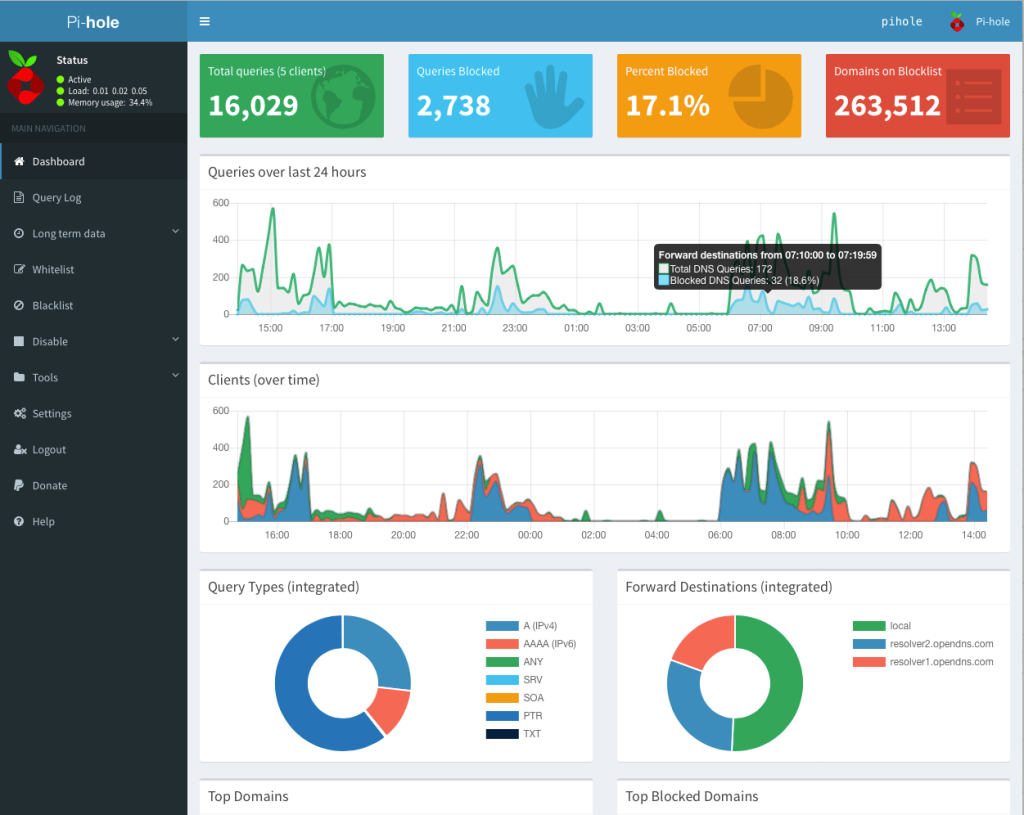
  • Pi-hole, Google Wifi, and Device Names

    Pi-hole, Google Wifi, and Device Names

    One of the things that bothered me for quite some time with my Pi-Hole was that using it with Google Wifi (first gen), it wouldn’t automatically detect device hostnames. I’d done a lot of googling and never could get it to work even after a lot of different trials with multiple settings.

    Eventually I gave up and instead wrote a command that would use nmap to help fill in the gaps, and output to /etc/pihole/custom.list:

    #!/bin/bash
    if [ "$(id -u)" != "0" ]; then
    	echo "This script must be run as root" 1>&2
    	exit 1
    fi
    
    echo -n "Looking up MAC and IPs"
    for ip in "192.168.1.0" "192.168.2.0" "192.168.3.0"; do
    	echo -n .
    	# This is very slow.
    	nmap -sP "$ip"/20 > "$ip"-nmap.txt
    done
    echo
    
    # Mega-command to turn the nmap output into a CSV.
    cat 192.168.?.0-nmap.txt \
    	| sed '/^Starting Nmap/ d' \
    	| sed '/^Host is up/ d' \
    	| sed '/^Stats:/ d' \
    	| sed '/^Ping Scan Timing:/ d' \
    	| sed '/^Nmap done:/ d' \
    	| sed -z 's/\nMAC/,MAC/g' \
    	| sed -e 's/Nmap scan report for //g' \
    	| sed -e 's/MAC Address: //g' \
    	| sed -e 's/ (/,(/g' \
    	| grep -Ev $'^[0-9.]+$' \
    	| sort -u > ip-mac-mapping.csv
    
    rm /etc/pihole/custom.list 2> /dev/null
    while IFS=, read -r col1 col2 col3
    do
    	# Strip out opening and closing parenthesis.
    	col3="${col3//[\(\)]/}"
    
    	# Replace all non-alphanumeric characters with dashes.
    	col3="${col3//[^[:alnum:]]/-}"
    
    	# Manually name some of the MACs I already know.
    	case "$col2" in
    	"24:05:88:XX:XX:XX")
    		col3="Google-Wifi"
    		;;
    	"B0:19:C6:XX:XX:XX")
    		col3="Derricks-iPhone"
    		;;
    	"CC:44:63:XX:XX:XX")
    		col3="iPad-Pro"
    		;;
    	"C8:D0:83:XX:XX:XX")
    		col3="Apple-TV-Den"
    		;;
    	"50:32:37:XX:XX:XX")
    		col3="Apple-TV-Bedroom"
    		;;
    	"DC:A6:32:XX:XX:XX")
    		col3="Ubuntu-Server"
    		;;
    	"38:F9:D3:XX:XX:XX")
    		col3="Derrick-MBP"
    		;;
    	*)
    		echo -n
    		;;
    	esac
    
    	# For some reason, this one is still funky, so I'm adding in a special case for it.
    	# Could have just been weird caching during my testing.
    	case "$col1" in
    	"192.168.1.1")
    		col3="Google-Wifi"
    		;;
    	*)
    		echo -n
    		;;
    	esac
    
    	# The PiHole custom.list is supposed to follow the hosts standard, but it seems that
    	# it is not happy with tabs and comments :sadpanda:
    	echo "$col1	$col3 # $col2"
    	echo "$col1 $col3" >> /etc/pihole/custom.list
    done < ip-mac-mapping.csvCode language: PHP (php)

    This will attempt to grab some info about all the devices on your network via nmap, but also allow you to manually override that per IP or per MAC. I have of course stripped out some devices and semi-anonymized my MACs in the above example.

    The nmap can be pretty slow, especially if you’re running this on a first gen Raspberry Pi like I am.

  • Quick Tip: Looping a command in bash

    Quick Tip: Looping a command in bash

    I recently came across the need to watch my disk space while running a slow program to make sure I didn’t run out. If I did, the command would fail silently and I’d have to start over again.

    This can easily be done with this short snippet:

    watch -n10 bash -c "df -h | ack disk1s5"Code language: JavaScript (javascript)
    Every 10.0s: bash -c df -h | ack disk1s5                                                                                  mbp.local: Mon Jul 20 15:09:51 2020
    
    /dev/disk1s5           488245288  10940872 144033352     8%   488237 4881964643    0%   /

    The important part here is disk1s5, which is the device file for the partition I wanted to watch. If you need to find this, it can be done simply by running the df as a whole:

    $ df
    Filesystem             1K-blocks      Used Available Capacity  iused      ifree %iused  Mounted on
    /dev/disk1s5           488245288  10940872 144035124     8%   488237 4881964643    0%   /
    devfs                        191       191         0   100%      662          0  100%   /dev
    /dev/disk1s1           488245288 331456068 144035124    70%  1379027 4881073853    0%   /System/Volumes/Data
    /dev/disk1s4           488245288   1048596 144035124     1%        1 4882452879    0%   /private/var/vm
    map auto_home                  0         0         0   100%        0          0  100%   /System/Volumes/Data/home
    /dev/disk1s3           488245288    516448 144035124     1%       48 4882452832    0%   /Volumes/RecoveryCode language: PHP (php)

    That is all.

    Photo by Wendy Wei from Pexels

  • Disabling Laptop Screen with Ubuntu Server

    Disabling Laptop Screen with Ubuntu Server

    As a part of my home network setup, I use an old Dell Studio XPS 15″ laptop as my “server.” It’s currently running Ubuntu 19.10. One issue I had during the last update was that whatever I set up a long time ago to manage the lid switch policy was lost, so I had to re-google it and re-do it, because I don’t want the screen to be on 24/7.

    Some Googling led me to a post that got me part of the way there:

    https://mensfeld.pl/2018/08/ubuntu-18-04-disable-screen-on-lid-close/

    I had to adjust a few things for my setup, and for posterity I’m going to log them here for the future.

    # As root, or sudo'd
    apt install vbetool -y
    echo 'event=button/lid.*' | tee --append /etc/acpi/events/lm_lid
    echo 'action=/etc/acpi/lid.sh' | tee --append /etc/acpi/events/lm_lid
    touch /etc/acpi/lid.sh
    chmod +x /etc/acpi/lid.shCode language: PHP (php)

    This will set everything up for the lid.sh script to run:

    #!/bin/bash
    # Close
    grep -q close /proc/acpi/button/lid/*/state
    if [ $? = 0 ]; then
    	sleep 1 &amp;&amp; vbetool dpms off
    fi
    # Open
    grep -q open /proc/acpi/button/lid/*/state
    if [ $? = 0 ]; then
    	sleep 1 &amp;&amp; vbetool dpms on
    fiCode language: HTML, XML (xml)

    Finally, reboot and enjoy not having to worry about the screen dying.