Category: Other Tech Junk

  • How to Use Backticks for Inline Code in Google Docs with a Chrome Extension

    How to Use Backticks for Inline Code in Google Docs with a Chrome Extension

    https://chromewebstore.google.com/detail/backtick/gfollmknbahbmikbkhepbggabhdpjlhh

    Update from the extension author:

    Update Aug 11, 2023:

    About a year after this extension first came out, Google released built-in inline code markdown support for Google Docs, rendering this extension obsolete for most use-cases. The extension will remain for those want to continue using it, but I don’t intend on making any further updates. To get the built-in inline code and code blocks working via backticks, ensure the Tools -> Preferences -> “Automatically detect Markdown” checkbox is enabled inside Google Docs.


    Zach Brogan, you are my new best friend! I have to confess, I’m a big fan of Markdown. It’s an elegant and straightforward markup language that allows for easy formatting and structuring of text. Whether it’s writing blog posts, documentation, or even taking notes, Markdown is my go-to tool.

    One issue I’ve encountered, however, is that not all platforms fully support Markdown. For instance, when working in Google Docs, despite the presence of a “markdown” option, inline code blocks never seemed to work as expected. It was frustrating to say the least.

    That’s when I stumbled upon the “Backtick” Chrome extension, and it has been a game-changer for me. The extension seamlessly integrates into the Google Docs editor, allowing me to effortlessly insert inline code blocks using backticks. No more struggling with wonky formatting or trying to find workarounds.

    With the Backtick extension, I can write and format my inline code snippets in Markdown within Google Docs. It has truly revolutionized my workflow and made my writing experience a lot smoother and more enjoyable.

    So, if you enjoy Markdown as much as I do, I highly recommend giving the “Backtick” Chrome extension a try. It will save you time and frustration, and let you focus on what you do best – creating great content. Happy writing!

    Thank you!

    https://backtick.zachbrogan.com
  • Fixing a broken ATOM Feed

    Fixing a broken ATOM Feed

    My city is not known for being technologically adept, and I’m at least lucky they have a website with a CMS. Sadly though, the website offers only a broken ATOM 1.0 feed, a standard that’s old enough to drink in some countries.

    Unfortunately, this doesn’t work with NewsBlur, so I had to sort to building a proxy that would parse the XML and output a JSON Feed.

    Through the power of Phpfastcache (only for a little bit of caching), I am embarassed to show you this cobbled together mess:

    <?php
    define( 'DEBUG', false );
    
    if ( defined( 'DEBUG') && DEBUG ) {
    	ini_set('display_errors', 1);
    	ini_set('display_startup_errors', 1);
    	error_reporting(E_ALL);
    }
    
    use Phpfastcache\Helper\Psr16Adapter;
    require 'vendor/autoload.php';
    
    $cache     = new Psr16Adapter( 'Files' );
    $url       = 'https://www.cityoflinton.com/egov/api/request.egov?request=feed;dateformat=%25B%20%25d%20at%20%25X%23%23%25b%2B%2B%25d;featured=3;title=Upcoming%20Events;ctype=1;order=revdate';
    $cache_key = 'atom-feed_' . md5( $url );
    
    // Get and/or fill the cache.
    if ( ! $cache->has( $cache_key ) ) {
    	$atom_feed = file_get_contents( $url );
    	$cache->set( $cache_key, $atom_feed, 60 * 60 * 1 ); // 1 hour.
    } else {
    	$atom_feed = $cache->get( $cache_key );
    }
    
    $feed_data = new SimpleXMLElement( $atom_feed );
    
    $json_feed = array(
    	'version'       => 'https://jsonfeed.org/version/1.1',
    	'title'         => filter_var( trim( $feed_data->title ) ?? 'Upcoming Events for the City of Linton', FILTER_SANITIZE_STRING ),
    	'home_page_url' => 'https://www.cityoflinton.com/',
    	'feed_url'      => 'https://decarbonated.org/tools/cityoflinton-rss/',
    	'language'      => 'en-US',
    	'items'         => array(),
    );
    
    foreach( $feed_data->entry as $entry ) {
    	$json_feed['items'][] = array(
    		'id'            => md5( $entry->id ),
    		'url'           => filter_var( trim( $entry->link['href'] ) ?? 'NO LINK FOUND', FILTER_SANITIZE_URL ),
    		'title'         => filter_var( trim( $entry->title ) ?? 'NO TITLE FOUND', FILTER_SANITIZE_STRING ),
    		'content_text'  => filter_var( trim( $entry->summary ) ?? 'NO CONTENT FOUND', FILTER_SANITIZE_STRING ),
    		'date_modified' => ( new DateTime( trim( $entry->updated ) ?? now(), new DateTimeZone( 'America/New_York' ) ) )->format( DateTimeInterface::RFC3339 ),
    	);
    }
    
    if ( defined( 'DEBUG ' ) && DEBUG ) {
    	header( 'Content-Type: text/plain' );
    	var_dump( $json_feed );
    } else {
    	header( 'Content-Type: application/feed+json' );
    	echo json_encode( $json_feed );
    }
    Code language: HTML, XML (xml)

    This will convert the XML from (prettified):

    <?xml version="1.0" encoding="ISO-8859-1"?>
    <feed xmlns="http://www.w3.org/2005/Atom">
    	<title>Upcoming Events</title>
    	<link rel="self" href="https://www.cityoflinton.com/egov/api/request.egov?request=feed;dateformat=%25B%20%25d%20at%20%25X%23%23%25b%2B%2B%25d;featured=3;title=Upcoming%20Events;ctype=1;order=revdate" />
    	<updated>2021-12-09T10:14:40</updated>
    	<id>https://www.cityoflinton.com/egov/api/request.egov?request=feed;dateformat=%25B%20%25d%20at%20%25X%23%23%25b%2B%2B%25d;featured=3;title=Upcoming%20Events;ctype=1;order=revdate</id>
    	<author>
    		<name>Organization Information</name>
    	</author>
    	<entry>
    		<title>City Hall Closed</title>
    		<link rel="alternate" href="https://www.cityoflinton.com/egov/apps/events/calendar.egov?view=detail;id=501" />
    		<updated>2021-12-09T10:14:40</updated>
    		<id>https://www.cityoflinton.com/egov/apps/events/calendar.egov?view=detail;id=501</id>
    		<featured>0</featured>
    		<summary type="html">City Hall Closed</summary>
    	</entry>
    </feed>Code language: HTML, XML (xml)

    to JSON like:

    {
      "version": "https://jsonfeed.org/version/1.1",
      "title": "Upcoming Events",
      "home_page_url": "https://www.cityoflinton.com/",
      "feed_url": "https://decarbonated.org/tools/cityoflinton-rss/",
      "language": "en-US",
      "items": [
        {
          "id": "9b0bcc229cdc4266e539a785d77b4a8f",
          "url": "https://www.cityoflinton.com/egov/apps/events/calendar.egov?view=detail;id=501",
          "title": "City Hall Closed",
          "content_text": "City Hall Closed",
          "date_modified": "2021-12-09T10:14:40-05:00"
        }
      ]
    }Code language: JSON / JSON with Comments (json)

    That’s all ¯\_(ツ)_/¯

  • iOS Reminders to Habitica To Do’s via IFTTT

    iOS Reminders to Habitica To Do’s via IFTTT

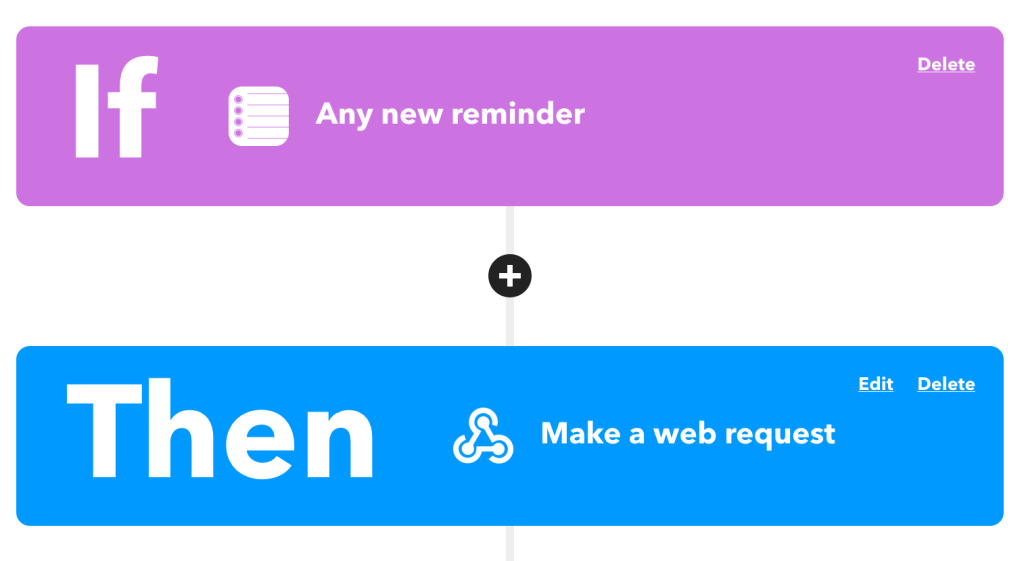
    After digging around for a while trying to see how I could link up iOS’s Reminders with Habitica‘s To Do’s to help keep me organized, I finally found an easy way through IFTTT.

    This works easily because Habitica offers a wonderful API💥

    Specifically we’re looking at the “Create a new task belonging to the user” API endpoint:

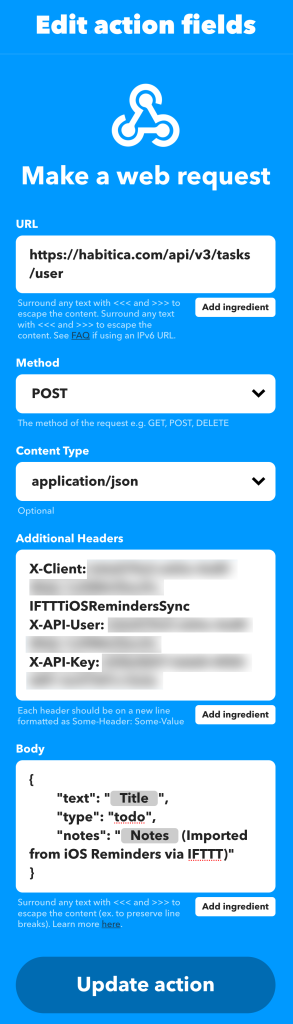
    https://habitica.com/api/v3/tasks/user

    With this, we’ll need to make a POST request with some special headers to authenticate and then a body payload made of JSON:

    Headers:

    X-Client: my-user-id-IFTTTiOSRemindersSync
    X-API-User: my-user-id
    X-API-Key: my-api-keyCode language: HTTP (http)

    Body:

    {
    	"text": "{{Title}}",
    	"type": "todo",
    	"notes": "{{Notes}} (Imported from iOS Reminders via IFTTT)"
    }Code language: JSON / JSON with Comments (json)

    From here, IFTTT will fill in the title, notes, and ship it off to Habitica for me to check off for some sweet XP!

  • My Favorite Firefox Addons

    My Favorite Firefox Addons

    For my own posterity in case I ever lose them, or if anyone is curious, here’s what I use:

    https://addons.mozilla.org/en-US/firefox/addon/1password-x-password-manager/
    https://addons.mozilla.org/en-US/firefox/addon/clearurls/
    https://addons.mozilla.org/en-US/firefox/addon/edit-cookie/
    https://addons.mozilla.org/en-US/firefox/addon/decentraleyes/
    https://addons.mozilla.org/en-US/firefox/addon/duckduckgo-for-firefox/
    https://addons.mozilla.org/en-US/firefox/addon/facebook-container/
    https://addons.mozilla.org/en-US/firefox/addon/image-search-options/
    https://addons.mozilla.org/en-US/firefox/addon/old-reddit-redirect/
    https://addons.mozilla.org/en-US/firefox/addon/recipe-filter/
    https://addons.mozilla.org/en-US/firefox/addon/reddit-enhancement-suite/
    https://addons.mozilla.org/en-US/firefox/addon/soundcloud-dl/
    https://addons.mozilla.org/en-US/firefox/addon/sponsorblock/
    https://addons.mozilla.org/en-US/firefox/addon/the-camelizer-price-history-ch/
    https://addons.mozilla.org/en-US/firefox/addon/ublock-origin/
    https://addons.mozilla.org/en-US/firefox/addon/view-image-in-google-images/
  • Raspberry Pi: February 2021

    Raspberry Pi: February 2021

    I often feel like I don’t get enough use out of my Raspberry Pi devices. I have a Raspberry Pi Model B Revision 2.0 (512MB) and a Raspberry Pi 4 (4GB).

    Their current uses are as follows

    Raspberry Pi Model B:

    Raspberry Pi 4:

    I’d love to do more, but I’m really not sure what else I need. I don’t need some grandiose home server but I absolutely love playing with these little things!

  • Pi-hole, Google Wifi, and Device Names

    Pi-hole, Google Wifi, and Device Names

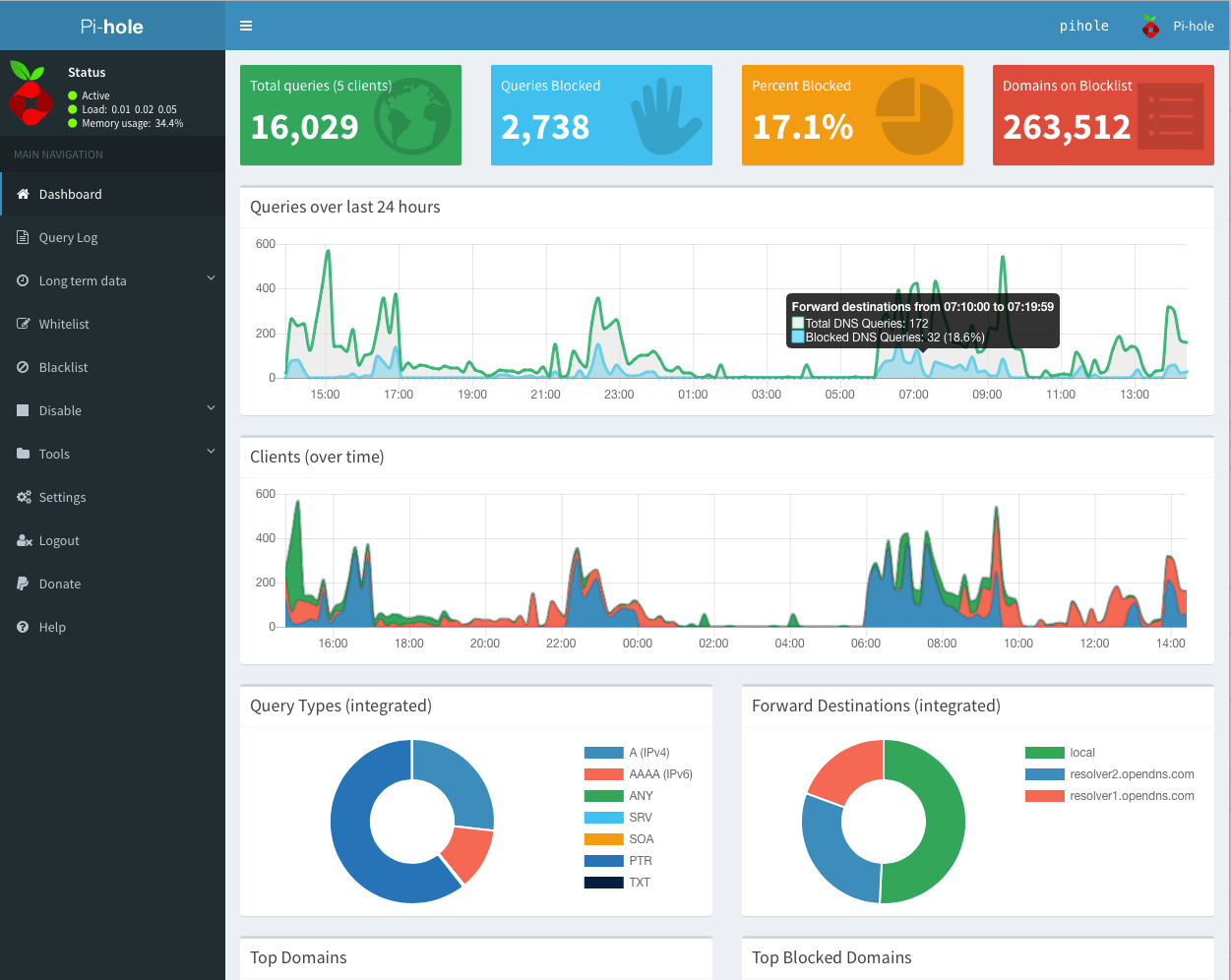
    One of the things that bothered me for quite some time with my Pi-Hole was that using it with Google Wifi (first gen), it wouldn’t automatically detect device hostnames. I’d done a lot of googling and never could get it to work even after a lot of different trials with multiple settings.

    Eventually I gave up and instead wrote a command that would use nmap to help fill in the gaps, and output to /etc/pihole/custom.list:

    #!/bin/bash
    if [ "$(id -u)" != "0" ]; then
    	echo "This script must be run as root" 1>&2
    	exit 1
    fi
    
    echo -n "Looking up MAC and IPs"
    for ip in "192.168.1.0" "192.168.2.0" "192.168.3.0"; do
    	echo -n .
    	# This is very slow.
    	nmap -sP "$ip"/20 > "$ip"-nmap.txt
    done
    echo
    
    # Mega-command to turn the nmap output into a CSV.
    cat 192.168.?.0-nmap.txt \
    	| sed '/^Starting Nmap/ d' \
    	| sed '/^Host is up/ d' \
    	| sed '/^Stats:/ d' \
    	| sed '/^Ping Scan Timing:/ d' \
    	| sed '/^Nmap done:/ d' \
    	| sed -z 's/\nMAC/,MAC/g' \
    	| sed -e 's/Nmap scan report for //g' \
    	| sed -e 's/MAC Address: //g' \
    	| sed -e 's/ (/,(/g' \
    	| grep -Ev $'^[0-9.]+$' \
    	| sort -u > ip-mac-mapping.csv
    
    rm /etc/pihole/custom.list 2> /dev/null
    while IFS=, read -r col1 col2 col3
    do
    	# Strip out opening and closing parenthesis.
    	col3="${col3//[\(\)]/}"
    
    	# Replace all non-alphanumeric characters with dashes.
    	col3="${col3//[^[:alnum:]]/-}"
    
    	# Manually name some of the MACs I already know.
    	case "$col2" in
    	"24:05:88:XX:XX:XX")
    		col3="Google-Wifi"
    		;;
    	"B0:19:C6:XX:XX:XX")
    		col3="Derricks-iPhone"
    		;;
    	"CC:44:63:XX:XX:XX")
    		col3="iPad-Pro"
    		;;
    	"C8:D0:83:XX:XX:XX")
    		col3="Apple-TV-Den"
    		;;
    	"50:32:37:XX:XX:XX")
    		col3="Apple-TV-Bedroom"
    		;;
    	"DC:A6:32:XX:XX:XX")
    		col3="Ubuntu-Server"
    		;;
    	"38:F9:D3:XX:XX:XX")
    		col3="Derrick-MBP"
    		;;
    	*)
    		echo -n
    		;;
    	esac
    
    	# For some reason, this one is still funky, so I'm adding in a special case for it.
    	# Could have just been weird caching during my testing.
    	case "$col1" in
    	"192.168.1.1")
    		col3="Google-Wifi"
    		;;
    	*)
    		echo -n
    		;;
    	esac
    
    	# The PiHole custom.list is supposed to follow the hosts standard, but it seems that
    	# it is not happy with tabs and comments :sadpanda:
    	echo "$col1	$col3 # $col2"
    	echo "$col1 $col3" >> /etc/pihole/custom.list
    done < ip-mac-mapping.csvCode language: PHP (php)

    This will attempt to grab some info about all the devices on your network via nmap, but also allow you to manually override that per IP or per MAC. I have of course stripped out some devices and semi-anonymized my MACs in the above example.

    The nmap can be pretty slow, especially if you’re running this on a first gen Raspberry Pi like I am.